

User manual
Everything your team needs to run Referral Intelligence: what each page shows, what the numbers mean, and where every action lives.
Welcome
Referral Intelligence is a growth operating system for orthodontic practices. It watches your referral network, ranks where attention will matter most, and turns that into a short weekly plan your team can actually finish.
The product is built around one loop. Referral data flows in from your practice management system or a CSV upload. The platform scores every referring relationship for volume, recency, and trend. Each week that scoring becomes a ranked list of actions, and every completed action is followed up with an honest read on whether referrals moved.
- Dashboard: your morning briefing. Where referrals come from, where to focus, and this week's plan.
- Referral Plan: the AI-generated weekly action list, plus the outcome history of everything you have completed.
- Relationships: every dentist and practice referring to you now, sorted by how much attention they need, with a full profile page for each one.
- Opportunities: the dentists you are winning or winning back (targets, leads, and lapsed referrers), plus a national dentist directory.
- Marketing ROI: what each lead source costs and what it brings back, by date range.
- Surveys: what referring dentists say in confidential surveys, organized into themes.
- Reports: your weekly and monthly practice summary, plus a one-page referral report you can email to a dentist or practice.
- Settings: your practice details, Practice Playbook, team, surveys, referral sources, data connections, and notifications.
What's new
Recent additions, in plain language. Each one is explained fully in its own section of this manual.
- Top referrers on the Dashboard: the referrers who sent the most in the selected range, each with its change against the period just before. See Dashboard.
- Maps: dentists and practices get a pin at their street address. That is the one you saved, or else the one the NPI directory lists for them (marked Registry address), so a ZIP code no longer piles everyone into one spot. Everyone else is listed under the map as Not on the map, with Add address and Link to practice right there. See Maps.
- Relationship stages: every dentist and practice now has one stage (Target, Lead, Referring, Lapsed, or Archived), and referring ones have a health (Active, Slipping, or At Risk). See How the numbers work, then Stages and health.
- Health tabs: Relationships lists everyone referring, with At Risk, Slipping, and Active tabs to narrow the list, and Opportunities shows your Target, Lead, and Lapsed pipeline. Each relationship gets one play, such as Recover or Introduce, with a suggested next step.
- Mark as normal and Flag as at risk: overrule the health on a relationship profile when you know something the data does not. The override ends on its own at the next referral, or when the relationship moves into a different health band. See The relationship profile.
- Archive: set a relationship aside with a reason, such as Retired or Moved, instead of deleting it. A new referral brings it back automatically. See The relationship profile, then Archiving a relationship.
- Prospect pages: open any directory dentist who is not on your list yet to see their details, then Add as target, Log a referral, or mark them Not a fit. See Opportunities.
- Reports: a weekly and monthly practice summary that writes itself, custom date ranges, and a referral report you can email to a dentist or practice as a PDF. See Reports.
- Practices as relationships: a dental practice or business can now sit on your roster next to individual dentists. Group its dentists under it and their referrals roll up into one line. See Relationships, then Practices.
- Linking imported referral sources: names from an imported referral report can be linked to a dentist, a practice, or a category right from the Relationships page. See Unlinked referral sources.
- Referral source categories: a new Settings page for the non-dentist sources of referrals, such as patients, ads, and events. See Settings, then Referral sources.
- Read a dentist's survey answers: View responses on a relationship profile shows every answer they gave, word for word. See The relationship profile.
- Not a fit: set aside directory dentists you will never contact. They move to your Archived list, and you can restore them any time. See Opportunities, then Not a fit and the Archived list.
- Dates and times in your time zone: timestamps across the app now show in your own local time instead of UTC.
Signing in and first-time setup
You join Referral Intelligence either by creating a practice yourself or by accepting an invitation from a practice owner.
- Sign in at the login page with your email and password, or continue with Google.
- If you are a new owner with no practice yet, a short setup screen asks for three things: practice name, practice type, and practice address. Everything else can wait.
- Select Create practice and you land on the Dashboard.
- If you were invited by email, follow the activation link in the invitation and set your password. You arrive already linked to your practice.
After setup, the Dashboard shows a banner inviting you to complete your Practice Playbook. The Playbook is a set of questions about how your practice likes to work, and it shapes every recommendation the platform makes. You can fill it in over time; progress saves per section.
Roles and permissions
Owners have full access. Everyone else has a role that an Owner creates and names, such as Front desk or Call center, which decides which pages they can open, whether they see revenue figures, and what they can do.
| Area | Owner | Custom role |
|---|---|---|
| Pages: Dashboard, Referral Plan, Calendar, Relationships, Opportunities, Maps, Surveys, Reports | Yes | Per role |
| Revenue figures (production, case value, ROI, spend) and Marketing ROI | Yes | Per role |
| Referrals page (log and review referrals) | Yes | With Log referrals |
| Actions such as logging referrals, creating practices, archiving, editing or deleting expenses | Yes | Per role |
| Invite and manage team members (never Owners) | Yes | Per role |
| Practice settings, referral source categories, and the Practice Playbook | Yes | Per role |
| Create, edit, and delete roles; make someone an Owner | Yes | Owner only |
| Permanently deleting a relationship and its data | Yes | Owner only |
| Creating the practice at onboarding | Yes | Not applicable |
Owners manage roles in Settings, Team: start from the Team member, Referrals only, or Blank template and turn on what the role needs. Everyone else sees their role and what it allows on the Team tab. A role without any pages lands on the Referrals page when it can log referrals. The signed-in owner cannot remove or demote themselves, so a practice always keeps at least one owner.
Dashboard
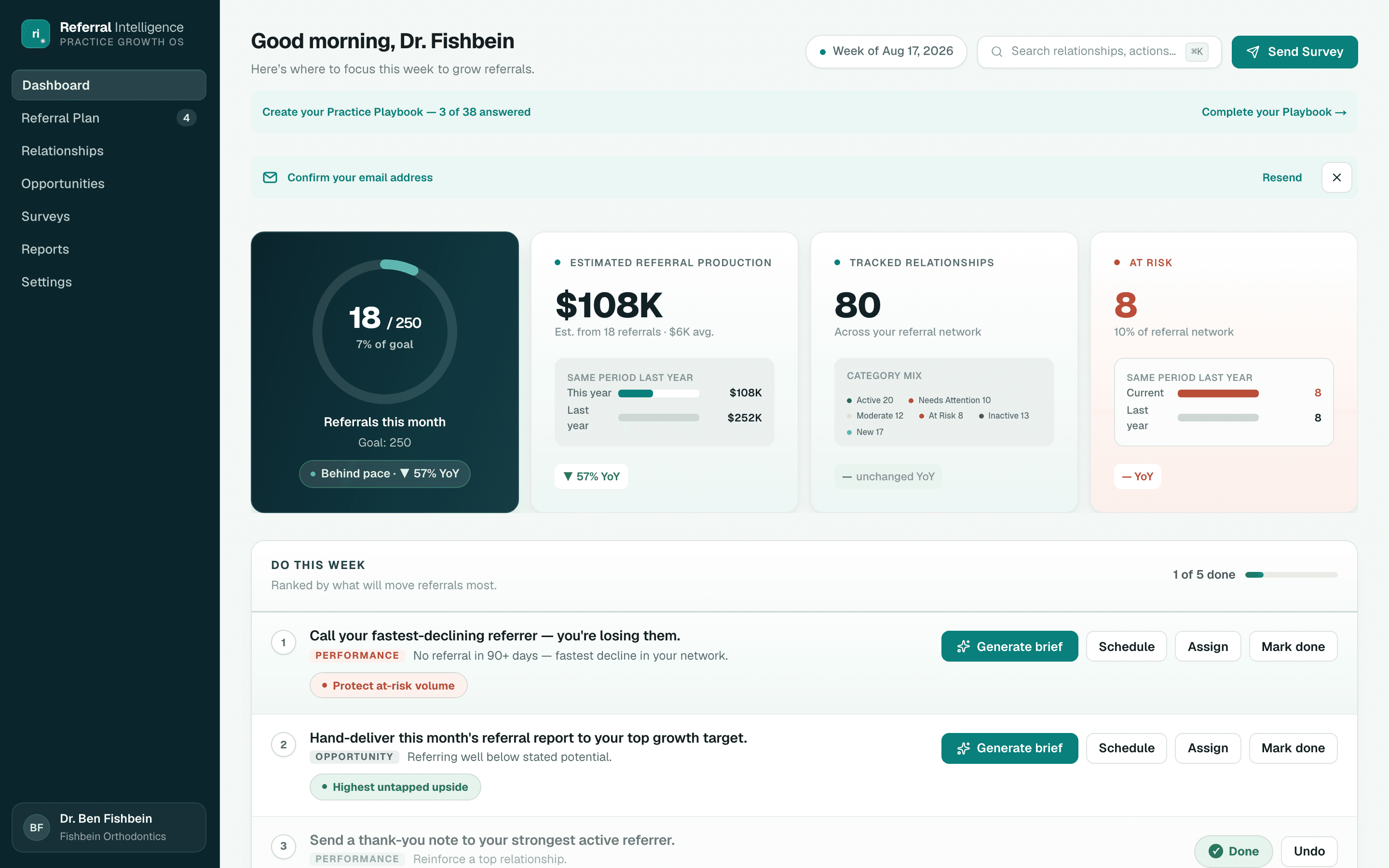
The Dashboard shows the health of your referral network at a glance: your referrals and their trend, who is referring, who needs attention, your top referrers, your marketing return, and what to do this week.
Key metrics
Pick a date range beside Referral overview: 30D, MTD, YTD, 365D (the default), or Custom to choose your own start and end dates (up to a year, with Last month, Last quarter, and Last year shortcuts). The numbers compare the range with the same dates last year. For a custom range, Top referrers compares with the same number of days just before it.
- Referrals, the large dark card: every referral in the range, from dentists, practices, and source categories, with the change against last year. Est. production below it is referrals multiplied by your average case value from Settings.
- Last 12 months: the chart inside that card shows referrals per month for the past year as a filled line, with the same months last year as a dashed line. It covers the last 12 months whatever range you pick. The month still in progress is drawn dotted, so a few days in never look like a drop. Hover or use the arrow keys to read any month.
- Active referrers: dentists and practices who sent at least one referral in the range. The ring splits them into new referrers, whose first referral ever falls in the range, and returning ones who had referred before.
- Needs attention: how many referring relationships are At Risk and Slipping right now, whatever the range. The bar shows them beside the Active ones, and the link opens the filtered list.
Top referrers
The five referrers who sent the most referrals in the range, with medals for the top three. A shaded bar behind each name shows how they compare with the top referrer. Show more expands the list to up to 25. Each row shows the change against the period just before it: the prior 30 or 365 days, last month up to the same day for MTD, or last year up to the same day for YTD. New means the referrer sent nothing in that earlier period.
Marketing ROI
Above Top referrers, the Marketing ROI card shows the same numbers as the Marketing ROI page for the range you picked: the return on your marketing spend, total spend, and cost per lead. The ring below shows where the range's leads came from, with the biggest sources named and their share. Hover a slice or a source to see its share in the middle of the ring. Without spend in the range, the card shows leads by source and a link to add spend.
Do this week
The same weekly plan that lives on the Referral Plan page appears beside Top referrers, so the morning check-in and the work itself are one screen apart. A fresh plan is generated for your practice every Monday morning. See the Referral Plan section for how the plan works.
Referral Plan
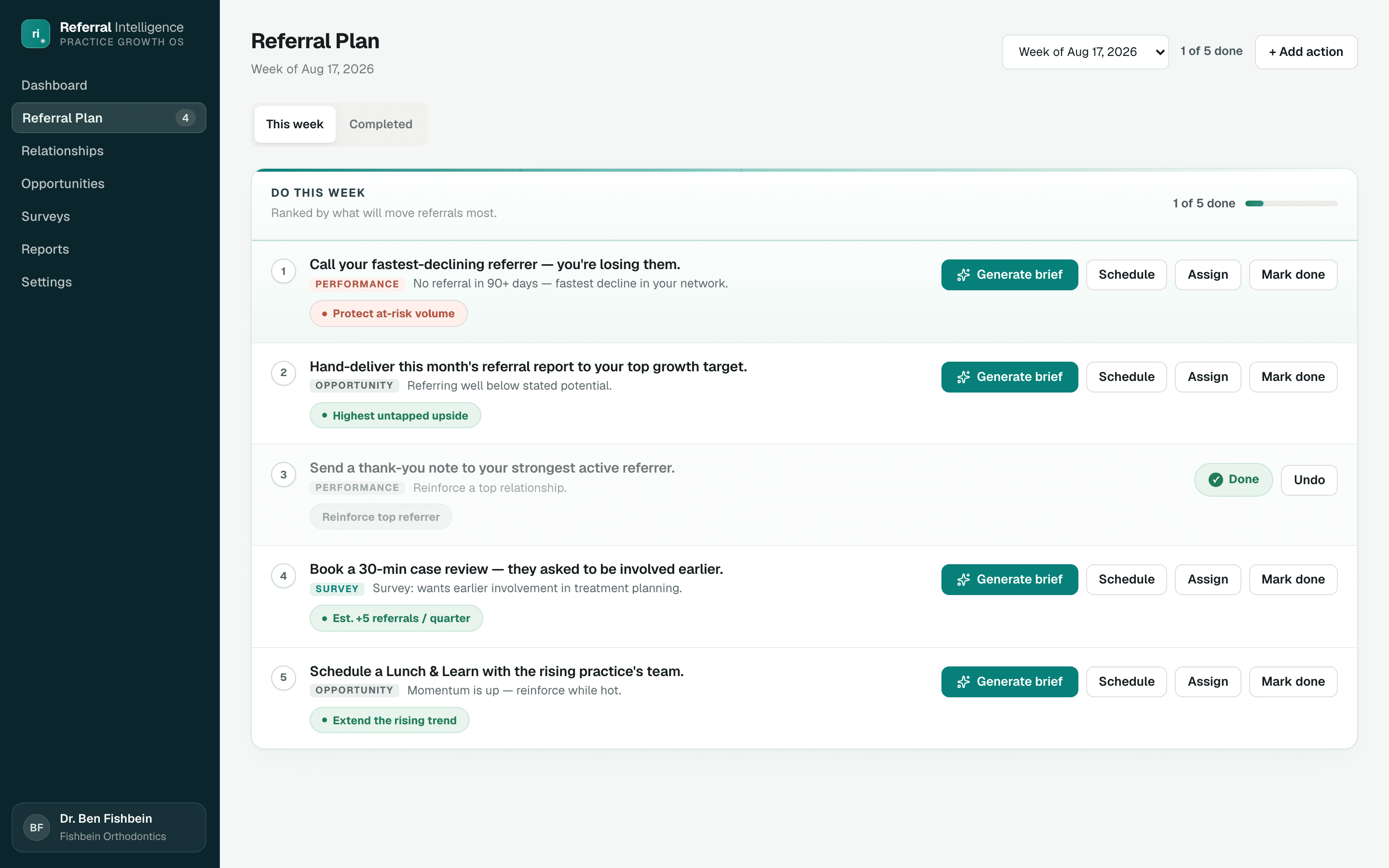
The Referral Plan page is where the week gets executed. Every Monday morning the platform generates a fresh plan of five actions from your live data. The page has two tabs: This week for open actions, and Completed for outcome history.
How the plan is made
The generator looks at your whole network and picks the five moves most likely to grow referrals: it weighs each relationship's referral gap, trend, and value, your Practice Playbook answers, and which tactics have historically produced lift for your practice. Each action names one dentist, uses the standard action types, and explains itself in plain language. A dentist appears at most once per plan.
- Automatic: a new plan arrives every Monday morning, and you get a Weekly plan ready notification when it lands. Last week's practice summary arrives at the same time; see Reports.
- On demand: Regenerate plan in the page header rebuilds the plan for the current week. Anyone on the team can use it. The old plan is archived, not deleted, so history stays intact. Actions you added yourself stay on the new plan; completed actions do not carry forward — they remain on the Completed tab.
- Safe by design: if generation cannot produce a solid plan, your current plan stays untouched and the page tells you what happened. You never lose a plan to a failed attempt.
Anatomy of an action
- Rank: actions are ordered by what will move referrals most.
- Source tag: Performance (from referral data), Opportunity (from the opportunity ranking), Survey (from something a dentist said), or Manual (added by your team).
- Why: a one-line reason, for example a 90+ day silence or untapped potential a dentist stated in a survey.
- Impact badge: red for risk you are protecting, green for upside you are chasing.
Birthdays this week
When a dentist on your list has a birthday during the current plan week, a Birthdays this week strip appears at the top of This week, separate from the plan's actions. Each row shows the dentist, the day (Today 🎂 on the day itself), and their cell phone from Contact details, with Copy and Text buttons. Text opens your messaging app. A dentist with no cell shows No cell on file, which links to their page. Nothing is ever sent to the dentist automatically. The strip covers the current week only; it does not appear when you look back at past weeks.
- Mark as sent: logs a Birthday message on the dentist's timeline, dated today, and hides the row until next year. Logging a Birthday message yourself from the dentist's page, within two weeks of the birthday, hides it too.
- Birthdays come from Relationship details on a dentist's page. Enter them as MM-DD-YYYY; the year is optional, so 03-14 works too. Older birthdays typed another way (like 3/14/1980 or March 14) are understood and shown as MM-DD-YYYY. Dates are read month first, so an old 04/03 means April 3. A birthday the app can't read is shown with a note asking you to re-enter it, and gets no reminders.
- On the day, your team gets an in-app notification (unless they've turned it off in Settings, Notifications), for example 🎂 Today is Dr. Anna Lee's birthday. Birthday emails are off unless you turn them on in Settings, Notifications; when they are on, the birthday is in that day's email digest.
Working the plan
- Generate brief: opens the meeting brief for the action's dentist, generating one first if none exists. See The relationship profile for what a brief contains.
- Schedule: pick a date for the action. Once saved, the button shows the date.
- Assign: hand the action to a specific team member, or leave it unassigned.
- Mark done: completes the action. A Done chip appears with an Undo option.
- Add action: create your own action with a title and a type (call, email, text, lunch, case review, CE event, thank-you note, visit, intro call, gift, send report, send survey, or other). Manual actions are tagged Manual and survive plan regeneration.
The Completed tab and referral lift
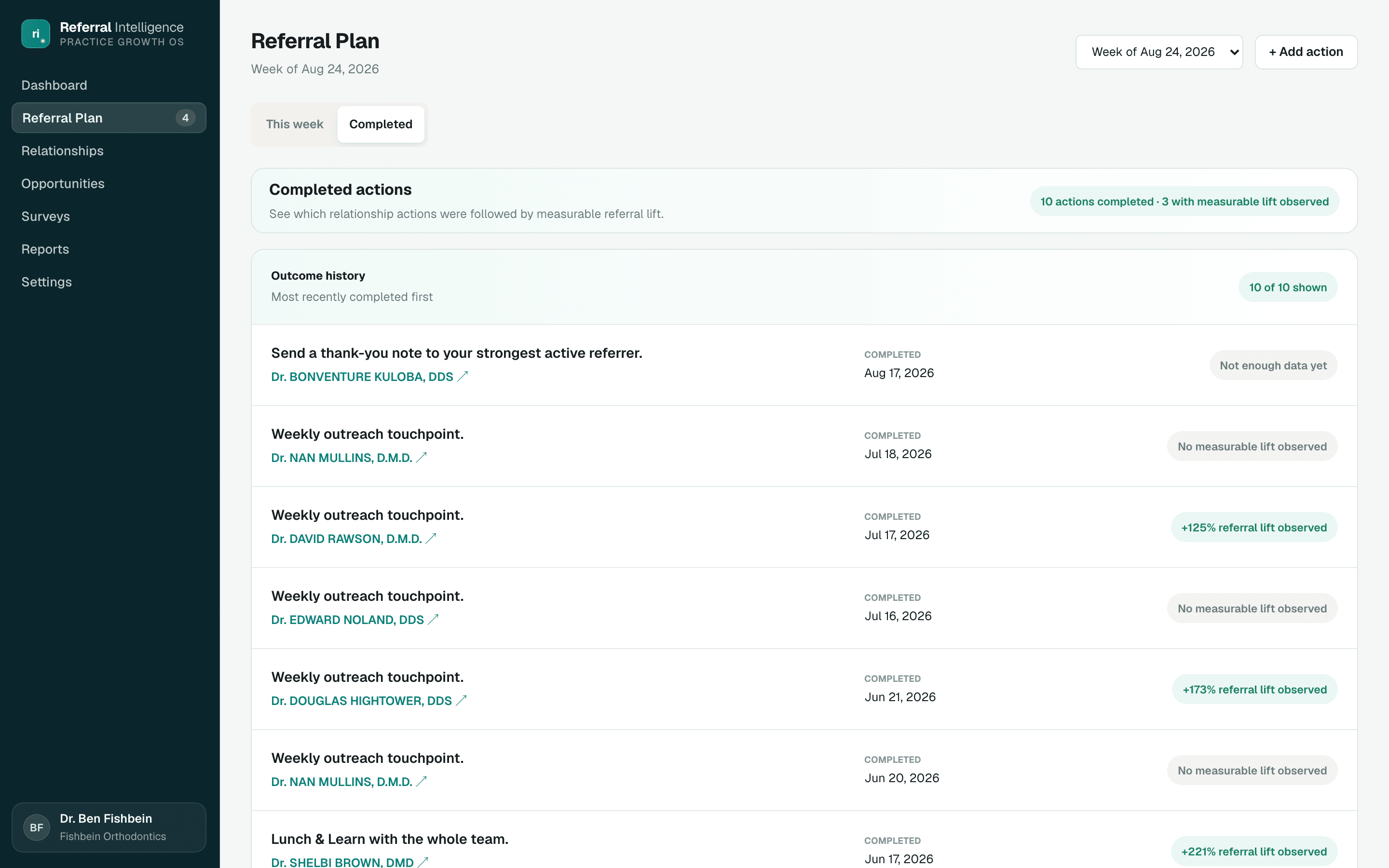
Each completed action gets an outcome chip once enough time has passed: a percentage referral lift observed, new referral activity observed, no measurable lift observed, or not enough data yet during the first 30 days. The wording is deliberate. The platform reports what happened after an action, and never claims the action caused it.
When enough outcomes accumulate, a What's working callout appears, for example showing that check-in calls average a given lift across your completed actions. Over time this tells you which tactics earn their place in your week.
Reports
The Reports page has two jobs. It keeps a practice summary for every week and month so you can see how referrals are tracking, and it builds a one-page referral report you can send to a dentist or a practice to say thank you with real numbers.
The practice summary
Switch between Weekly, Monthly, and Custom at the top of the summary. The large card always shows the last period that has fully closed, because a finished week or month is a fair comparison. The row beneath it shows the period in progress so far; that row is live and is not saved.
- Referrals against goal: the monthly goal from Settings, scaled down for a week or up for a custom range. With no goal set you see the count alone.
- Est. production: referrals multiplied by your average case value from Settings.
- Active referrers and at risk: on the last day of the period, how many relationships were Active or Slipping, and how many were At Risk. Mark as normal and Flag as at risk count here too.
- Top referrers, plus who is rising and who is declining. A very quiet week hides the top list, and movers need at least 3 referrals to appear so that one patient cannot look like a trend.
- Actions completed and dentists surveyed in the period. Monthly summaries also say how many of those actions were followed by a referral lift.
When summaries appear
- Every Monday morning the summary for the week that just ended is created for you, and on the 1st of each month the summary for the month that just ended. You get a notification such as Last week: 52 referrals, 90% of pace. Clicking it opens the PDF.
- The first time anyone on your team opens Reports, the last 3 months and 4 weeks are filled in automatically.
- Older periods show a Generate button in the archive. Custom lets you pick any range up to 366 days, with shortcuts for Last quarter, Year to date, and Last 12 months, then Generate summary.
- A saved summary is a frozen snapshot. If you import older referrals later, use Regenerate to make a fresh copy; the newest copy is the one shown and earlier copies are kept as history.
The referral report for a dentist or practice
- In Create a report, search your roster for a dentist or a practice. A practice report counts every dentist you have grouped under it, so a dentist you grouped under a practice is reached through that practice.
- Pick a period: any of the last 12 full months, or Custom range. There are no weekly reports for referrers.
- Click Generate report. The preview shows how many patients they have referred in total, since when, and how many in the period. Nothing is saved yet.
- Edit the personal note. It starts as a short thank you and is signed with your practice owner's name.
- Click Save report. The report appears under Recent reports, and Download PDF and Email report become available.
Emailing a report
- The To address starts as the last address you emailed for this dentist or practice, then the address in the directory, otherwise blank. An address you type is remembered for your practice only.
- The email comes from your practice name via Referral Intelligence, and replies go to the person who sent it.
- Recent reports shows Emailed with the date once a send succeeds, and Not yet delivered until then. Downloading a PDF does not count as delivering it.
- If this week's Referral Plan asked you to send this report, the row is marked In this week's plan and a successful send completes that action for you, with Undo in case it was a mistake. The Send report button on that plan action brings you straight here with the dentist or practice already chosen.
- A practice can send up to 50 report emails a day. Practice summaries are for your team and cannot be emailed from here.
Relationships
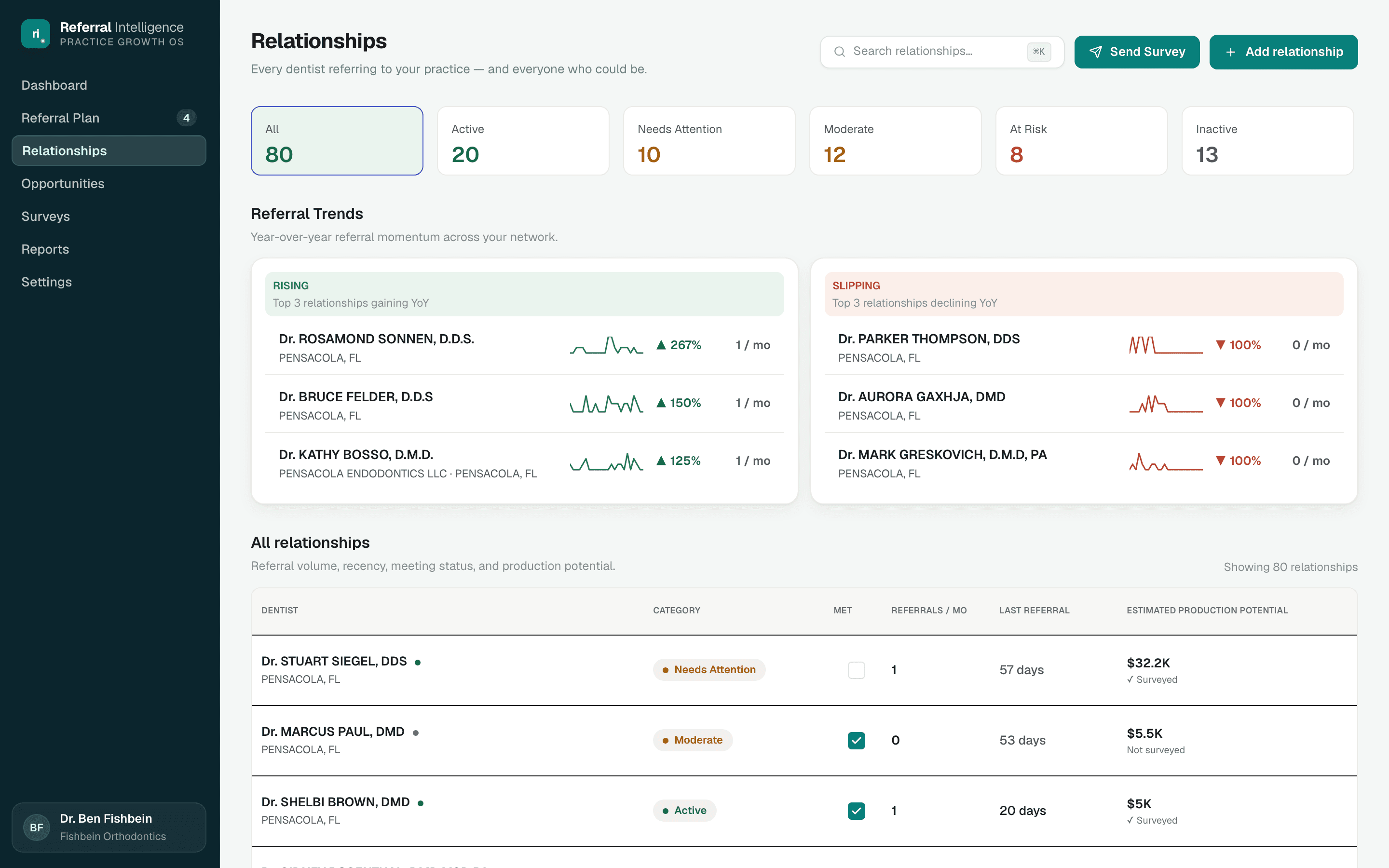
Relationships lists every dentist and practice referring to you now: anyone whose last referral was 120 days ago or less. Dentists you are still winning, and referrers who have lapsed, live on Opportunities.
Network health
Network health shows how many relationships are referring. Beside that count is a line chart of referrals per month over the last 12 months, with the same months last year as a dashed line. Hover a month to read it. The ring beside the chart shows the health mix: At Risk, Slipping, and Active, with counts and shares. Click a slice or a row under the ring to show only that group in the table, and click it again to show everyone. The page always opens on All referring.
Top referrers, beside it, ranks your five biggest referrers over the last 12 months. Each row shows their referrals per year, the change from the year before, a 12-month sparkline, their health, when they last referred, their share of all your referrals, and estimated production.
Top movers
Top movers, at the top of the page, compares this year so far with the same dates last year. Biggest increase lists the three relationships gaining the most referrals, and Biggest decrease the three losing the most, each with a 12-month sparkline. A relationship needs at least 3 referrals over last year's dates to appear, so one patient cannot look like a trend. Biggest decrease is about the year's trend; it is not the same as the Slipping health.
The relationships table
- Dentist: the dentist or practice. Dentist rows show their practice and location, and a dot shows whether they have been surveyed. Practice rows show an office icon in place of initials and the number of dentists, and their survey note says how many of those dentists have answered, for example 2 of 3 surveyed.
- Health: At Risk, Slipping, or Active. It is worked out from referral recency and volume, unless your team has overridden it. See How the numbers work.
- Tags: Regular or Occasional (how often they refer), New referrer (first referral in the last 90 days), and Overridden when someone on your team has marked this relationship as normal or flagged it as at risk.
- Met: a simple checkbox for whether your team has met this dentist or practice in person. You can toggle it right in the table.
- Referrals / yr: referrals in the last 12 months.
- This year vs last: referrals from Jan 1 to today, with the change against the same dates last year as a green or red chip, and last year's count (and the percent change) underneath. The column sorts by the change.
- Last referral and Estimated production potential complete the row.
The table opens sorted by referral volume, highest first. Click a column heading to sort by it, and click again to reverse the order. Above the table, search by name or practice, and filter by health, by tag, or by type (All, Dentists, or Practices). The health filter and the Network health ring stay in step. Clear filters resets them all.
Practices
Some referrals come from a practice or business rather than one named dentist. A practice is a relationship in its own right: it has a stage and health, a Met checkbox, a profile page, a timeline, next steps, and meeting briefs, exactly like a dentist.
- Select New practice in the page header and start typing a name. You will see practices you already have, matching organizations from the national NPI directory, and an option to create the name as a custom business.
- Open the practice and use Add dentist to group its dentists under it. If the practice came from the NPI directory, dentists registered there appear under Suggested from NPPES with a one-click add.
- Each grouped dentist disappears from the roster as a separate row. Their referral history now counts toward the practice.
Unlinked referral sources
When referral data is imported from a report, each source arrives as a plain name. Until you say who that name is, its referrals cannot be credited to anyone. The Unlinked referral sources list sits under the relationships table and shows every name still waiting, with its referral count, highest first. It disappears once the list is empty.
- Pick a type for each row: Dentist, Practice, Category, or Other.
- Dentist: Link dentist searches the national directory. Linking attaches the full referral history and adds the dentist to your roster.
- Practice: Link practice searches your existing practices and the NPI directory, or creates a custom business on the spot.
- Category: Link category picks one of your referral source categories, such as Patient or Online. Manage the list in Settings, Referral sources.
- Other: an ignore bucket for names you do not want to track. The row stays visible so you can change your mind later.
The relationship profile
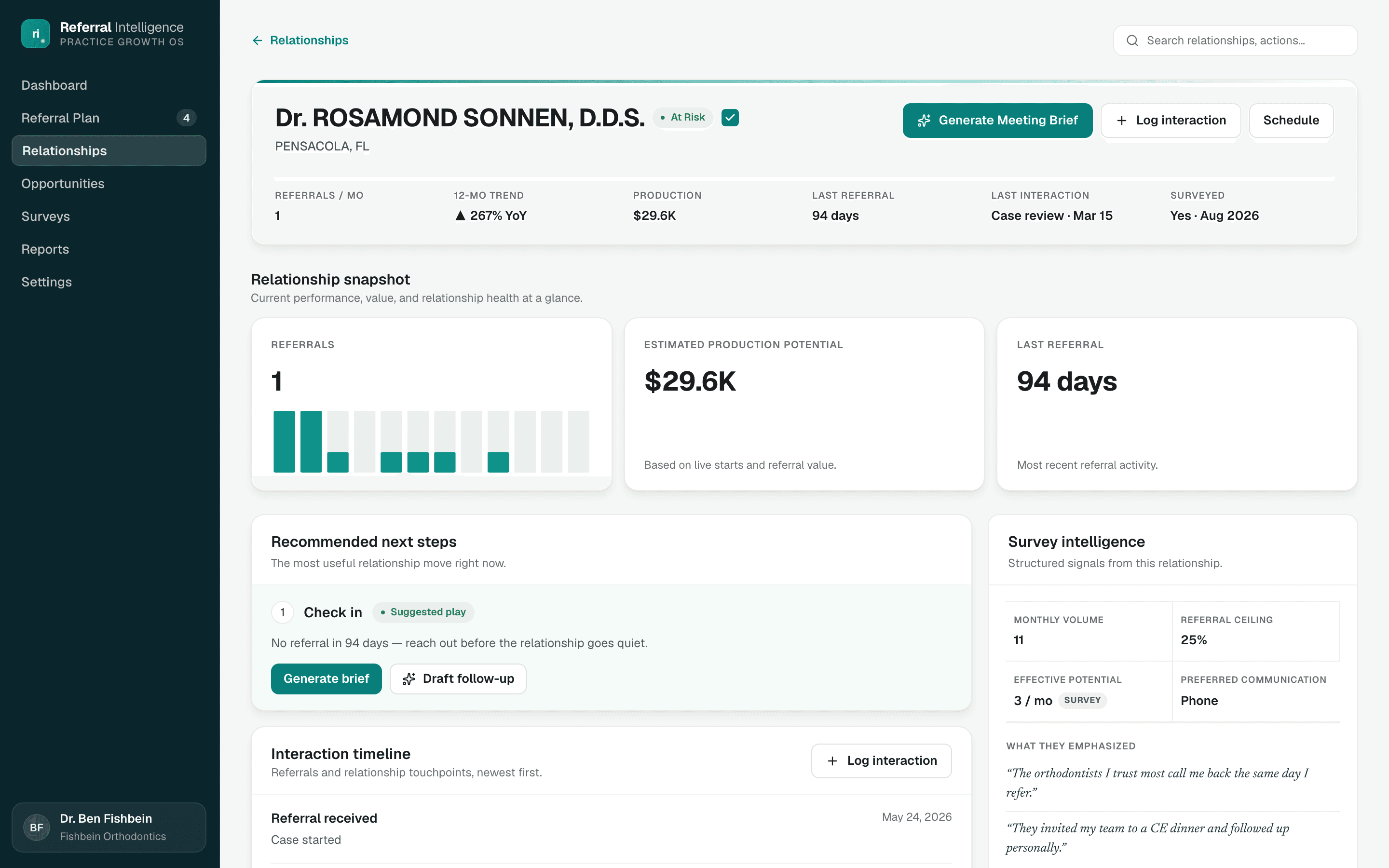
Click any dentist or practice to open their profile: performance, recommended next steps, a full interaction timeline, survey intelligence, and a living profile of personal context.
Stage, health, and tags
Chips next to the name show where the relationship stands. The first is the stage: Target, Lead, Referring, Lapsed, or Archived. A referring relationship also shows its health: Active, Slipping, or At Risk. Tags follow, such as Regular, Occasional, New referrer, Contacted, Not contacted, Gone cold, or Overridden. A dentist grouped under a practice reads Practice member, because their referrals count toward the practice. See How the numbers work, then Stages and health.
Mark as normal and Flag as at risk
Sometimes you know something the numbers do not. A dentist who always refers in spring is not really at risk in winter. A steady referrer who just joined a group with its own orthodontist is. On a referring relationship, buttons under the name let you overrule the health:
- Mark as normal: shown when the health is At Risk or Slipping. The relationship counts as Active.
- Flag as at risk: shown when the health is Active or Slipping. The relationship counts as At Risk.
- Either one asks Why? (optional), so your team can see the reason later.
While an override applies, the header reads, for example, Marked normal by Sarah on Sep 3, 2026, with your note and an Undo button. The relationship carries an Overridden tag, and the Relationships tabs, the plays, and the weekly plan all use the overridden health.
Snapshot and next steps
The quick stats strip covers referrals per month, the 12-month trend, production, last referral, last interaction, and survey status. Below it, Relationship snapshot charts the last 12 months of referrals, and Recommended next steps names the single most useful move right now with a plain-language reason.
Next steps and the weekly plan are one engine, not two. When this week's plan already contains an action for this dentist, the card shows that exact action, with the same complete and schedule controls. Only when the plan has nothing for this dentist does the card fall back to their play, marked Suggested play, with its next step, for example Call to check in for a Slipping regular referrer.
Meeting briefs
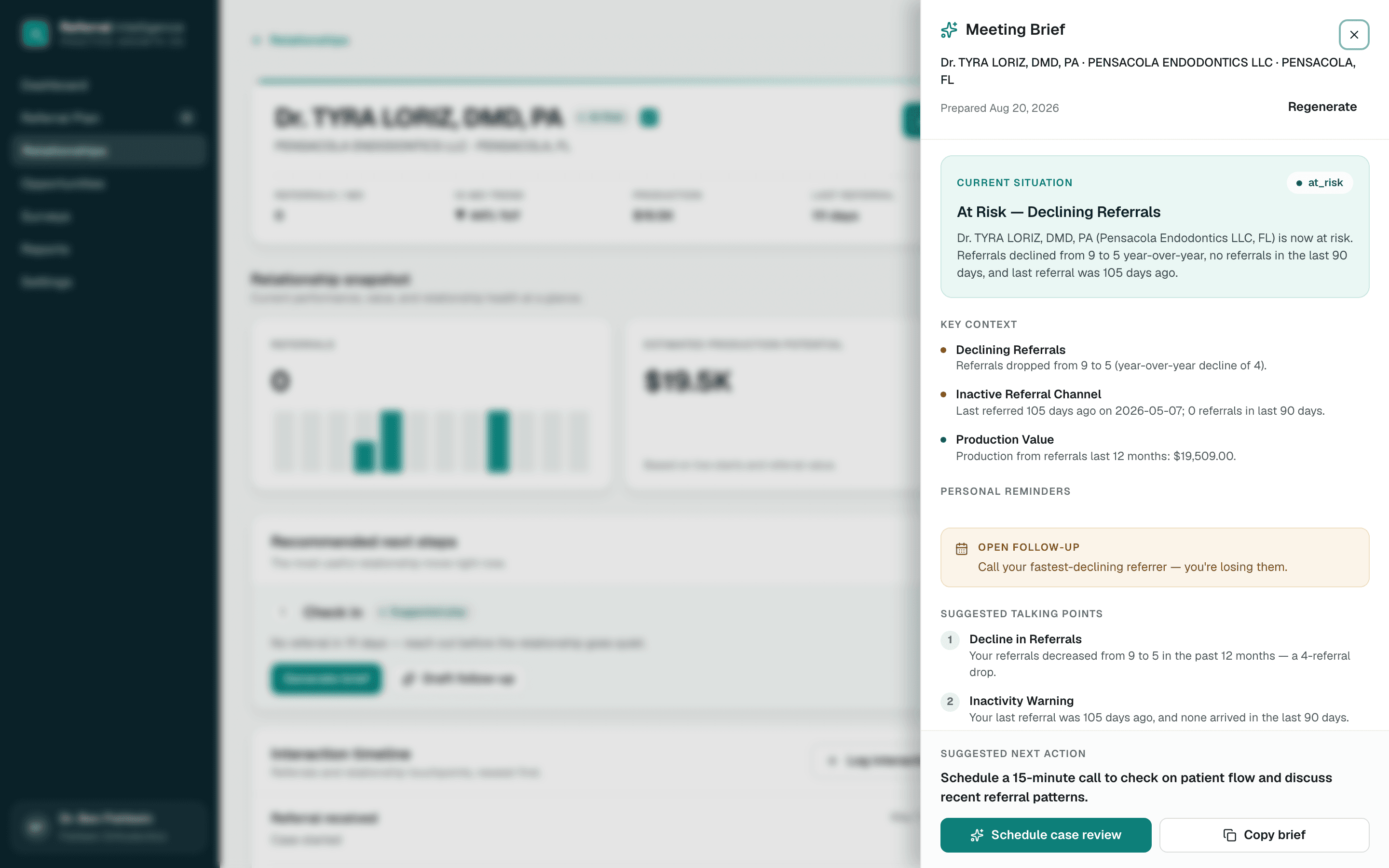
Generate Meeting Brief prepares you for a conversation with this specific dentist. The brief pulls together their referral performance, your interaction history and notes, their survey answers, and the living profile, and turns it into a current situation summary, key context with risk and positive signals marked, personal reminders, any open follow-up, numbered talking points, and one suggested next action.
- Copy brief formats the whole brief as plain text so you can paste it anywhere.
- Regenerate produces a fresh brief from the latest data. Earlier briefs are kept, and the drawer always shows the newest one.
- Generate brief on a weekly plan action jumps straight here and opens the brief for that dentist, generating one first if needed.
Draft follow-up
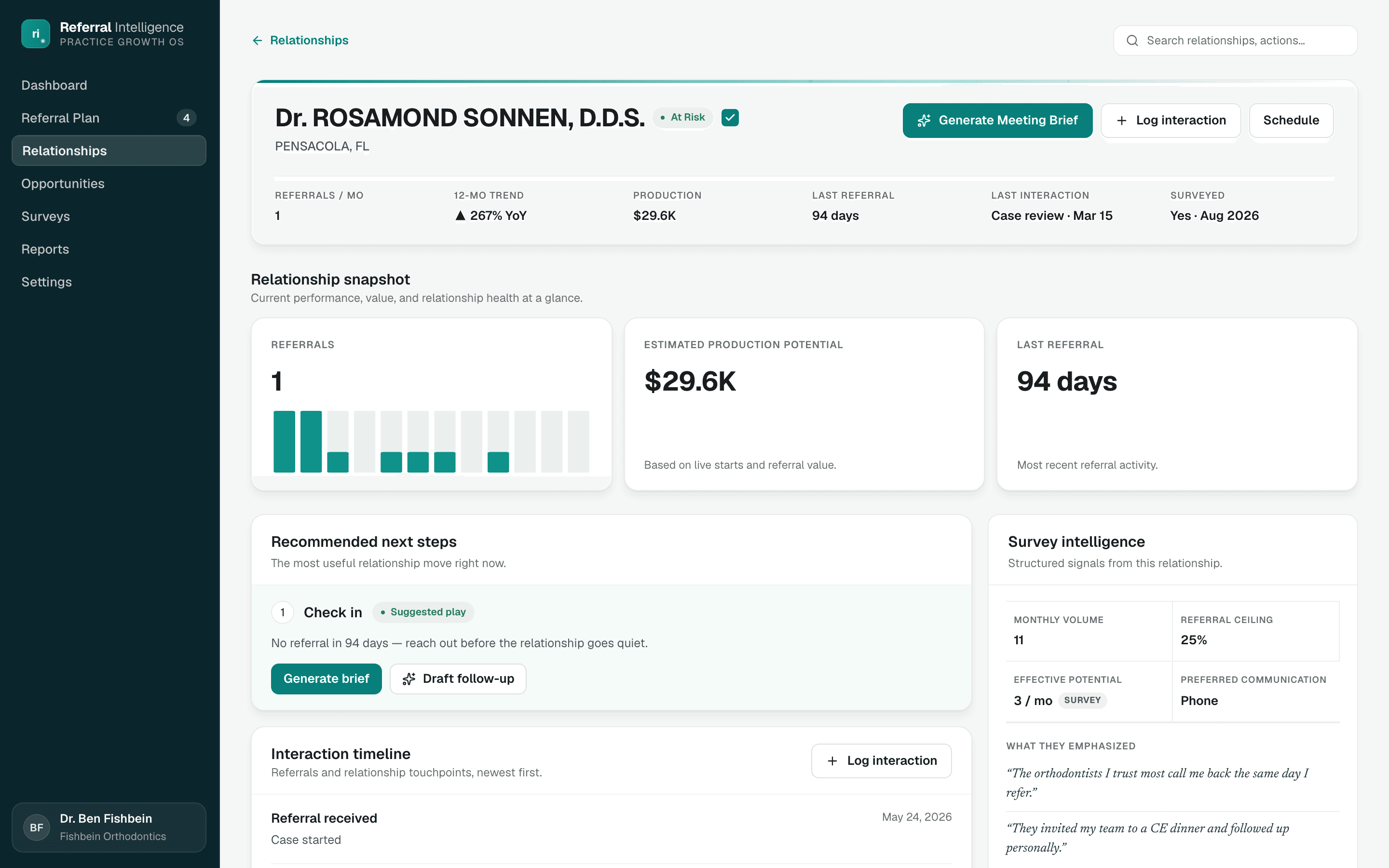
Draft follow-up writes a ready-to-send message (subject and body) for this dentist, shaped by their communication preferences, your last interaction, and what they said in surveys. Review it, copy it, and send it from your own email or phone. Drafts are never stored: close the dialog and it is gone.
Interaction timeline and logging
The timeline merges referral events with the touchpoints your team logs, newest first. Log interaction opens a short form with a type, a date, and notes. Tick Add an expense to record what the touchpoint cost (for example cookies for an office visit); it counts toward Dentist referrals spend on Marketing ROI and shows on the timeline entry. Logging an in-person type (lunch, visit, case review, CE event, or intro call) automatically marks the relationship as Met.
Reading survey answers
The Survey intelligence panel summarizes what a dentist said. To read the actual answers, select View responses in the panel header. A side drawer lists every survey the dentist has completed for your practice, newest first. The newest one is open; older ones expand with a click. Each shows the survey name, a Global or Practice tag, the date and time it was submitted, and every question with the answer given.
Contact details
Contact details is the first card in the right-hand column. A building icon marks a practice's contact details, and a person icon marks a dentist's own. The page header shows the city and state rather than the street address, which lives on this card.
- Practice page: the address, which opens in Google Maps, plus the office phone and the office email.
- Dentist page: the dentist's address, cell phone, and personal email. A dentist grouped under a practice also shows the practice's office phone and email, when the practice has them, marked via and the practice name. Those are read-only here; change them on the practice page.
- Select a phone number to call it, or an email address to write to it. A US number (10 digits, or 11 with a leading 1) shows as (850) 555-0100; anything else shows as typed.
The pencil next to the address opens Edit address, or Add address when there is none yet. The pencil in the card header opens Edit phone and email. Leave a field blank to clear it. An email must be a single address, like office@smiledental.com. Meeting briefs can use a practice's office phone and email, but never a dentist's cell phone or personal email.
The living profile
Relationship details is shared context for the whole team. For a dentist: birthday, key staff, communication preferences, and notes. For a practice: key staff, number of team members, preferred communication, and notes. Phone numbers and email addresses live in Contact details. Whatever you save here also feeds meeting preparation later, so small details are worth recording.
Practice pages
A practice profile carries a Practice badge next to its name and works like a dentist profile, with a few differences.
- Dentists: a section listing the dentists grouped under this practice, with Add dentist and a Remove control on each row. Removing asks you to confirm and explains that the dentist returns to your roster with their own history.
- Details on a dentist's row shows read-only facts about them: Met, referrals in the last 12 months, last referral, survey date, their cell phone and personal email when saved, and their relationship details. Edit these on the dentist's own page.
- Survey intelligence: shows each dentist with a Surveyed date or Not surveyed, with a Send survey button for anyone not yet heard from. View responses shows every dentist's answers, grouped by name.
- Meeting briefs: generated for the practice as a whole, and they know which dentists belong to it.
- Archive: archiving a practice unlinks its dentists. Each one stays on your list as their own relationship, with their own stage. If you restore the practice later, add them back with Add dentist.
Archiving a relationship
When a dentist retires, moves, or is simply not someone you will work with, archive them instead of deleting them. Select Archive in the profile header. The dialog explains that archived relationships leave your lists, plans, and surveys, while their referrals still count and a new referral brings them back.
- Leave Keep referral data selected.
- Pick a Reason: Retired, Moved, Practice closed, Not a fit, or Other.
- Add a Note (optional), for example where they moved to.
- Select Archive. You return to Relationships, and the relationship is gone from the lists.
Archiving also clears any Mark as normal or Flag as at risk override, so a restored relationship starts fresh from the rules.
Archived relationships and Restore
Find archived relationships under Show archived on Opportunities, or by searching. An archived profile still opens. A banner reads Archived, then the reason, for example Archived · Retired, with your note. The referral history and timeline stay visible, but next steps, meeting briefs, and new interactions are switched off. Select Restore to bring the relationship back. Its stage is then worked out from its history as usual.
Deleting permanently (owners)
The same Archive dialog has a second option, Delete everything, for owners only. It first counts what would go, such as referrals, interactions, and meeting briefs, then permanently deletes the relationship with all of it. Your practice totals drop and it cannot be undone. Use it for mistakes, like a dentist added by accident. For anyone you simply stopped working with, archive instead.
Opportunities
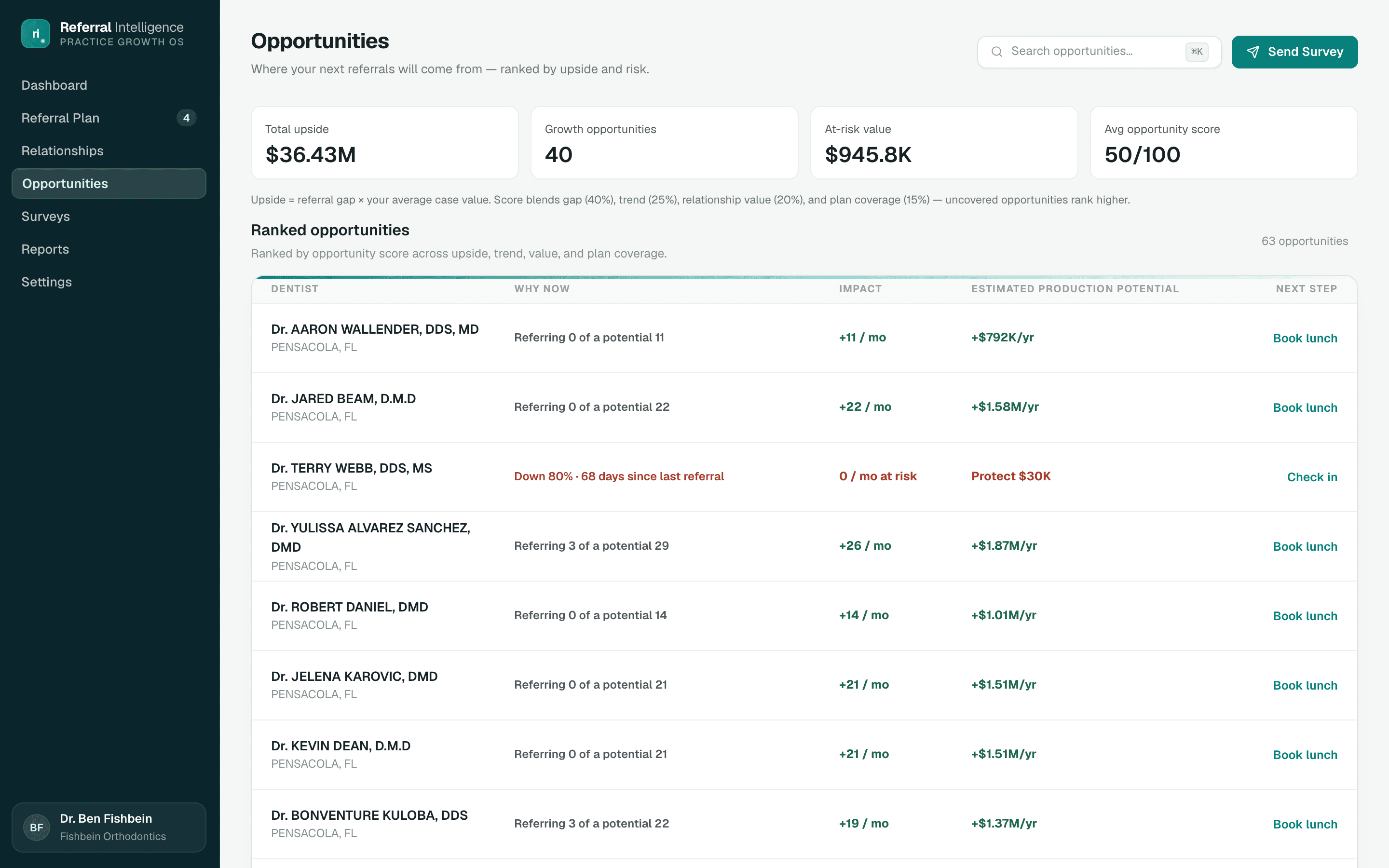
Opportunities is where you win new referrers and win back old ones. Your pipeline of targets, leads, and lapsed referrers sits at the top, and the national directory you prospect from sits below it.
The pipeline
Four counts sit across the top: Targets, Leads, Lapsed, and New referrers (90 days), the number of relationships whose first-ever referral came in the last 90 days. Below them are three tabs:
- Target: dentists and practices on your list that have never referred and that your team has not contacted yet. Their tag reads Not contacted.
- Lead: dentists you have contacted, by a logged interaction or a survey answer, who have not referred yet. The tag reads Contacted, or Gone cold when the last contact was more than 90 days ago.
- Lapsed: former referrers whose last referral was more than 120 days ago. The tag reads Regular or Occasional, and the row shows the last referral.
The page opens on the first tab with anyone in it, checking Lead, then Target, then Lapsed. Every row shows its play and a next step. Click the name or the next step to open the relationship.
Plays
Every relationship gets exactly one play, worked out from its stage, health, and tags. The play names the kind of move that fits, and the next step is the one action to start with. Plays appear here and as the suggested play on each profile. When the rules could match more than one play, the first one in this table wins, so a new referrer who is already Slipping gets Check in.
| Play | When | Typical next step |
|---|---|---|
| Win back | Lapsed: no referral in more than 120 days | Visit to win them back |
| Recover | Referring, At Risk | Book a visit |
| Check in | Referring, Slipping | Call to check in |
| Welcome | Referring, Active, and a New referrer | Send a thank-you |
| Appreciate | Referring, Active, and Regular | Invite to a CE event |
| Grow | Referring, Active, and Occasional | Book lunch |
| Re-engage | Lead that has gone cold | Call to reconnect |
| Follow up | Lead | Book a follow-up visit |
| Introduce | Target | Book an intro call |
Archived relationships have no play. A health override changes the play too: a relationship marked as normal is treated as Active, and one flagged as at risk gets Recover.
The dentist directory
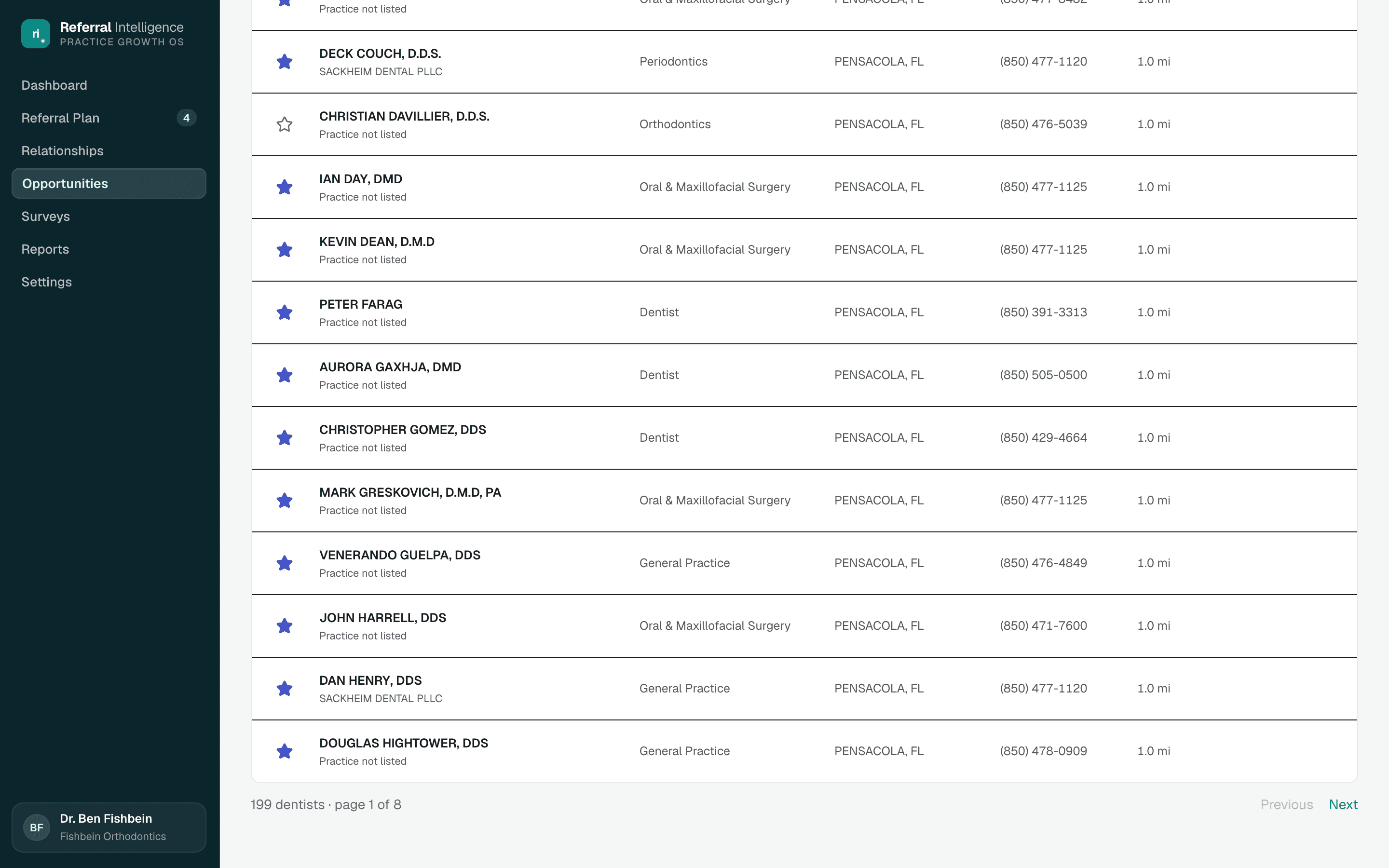
All Opportunities, below the pipeline, is the national directory minus everyone already on your list, so every row is someone new. Search by name or NPI, filter by specialty, pick one of your practice locations, and set a radius in miles. Distances require a saved practice address in Settings, Practice.
- Add Target: the button on each row adds the dentist to your list as a Target, ready for an introduction. The row then leaves the directory; find them in your pipeline above.
- Click a dentist's name to open their prospect page. With Show archived on, an archived dentist opens their relationship profile.
The prospect page
A dentist who is not on your list yet opens a read-only prospect page, marked Prospect. It shows what the NPI directory knows: specialty, practice, address, phone, distance from your primary location, and NPI. The same page opens from search results and from dentists on the map. Three actions sit in the header:
- Add as target: adds the dentist to your list and opens their relationship profile.
- Log a referral: records a referral from them, adds them to your list, and opens their relationship profile.
- Not a fit: archives the dentist with the reason Not a fit and takes you back to Opportunities.
Not a fit and the Archived list
The directory includes every dentist in the country, so some rows are noise: retired, moved away, or simply not a fit. The circle-slash button on a row marks that dentist Not a fit for your whole practice. They are archived with that reason and drop out of the directory. The button is not shown for dentists already on your list; archive those from their profile instead.
- Show archived, a checkbox in the filter bar, brings archived dentists back into the directory with an Archived tag on each one.
- It also opens the Archived list above the directory: every archived dentist and practice, whatever the reason, with the reason, any note, and the date it was archived. It shows the 25 most recent.
- The arrow button on an archived row restores that dentist to your list. Adding an archived dentist as a target restores them too.
- Archiving leaves their referral history alone. Their referrals still count toward your practice totals.
Maps
Maps shows where your relationships are and where your next ones could be. There is a pin for every dentist and practice with a street address (yours or the NPI directory's), a bubble for nearby dentists who are not on your list yet, and a list of everyone who still needs an address.
Reading the map
- A relationship pin sits at a street address: the address you saved for a practice or a dentist, or else the address the NPI directory lists for them. Dentists linked to a practice are counted in the practice's pin.
- The number on a pin is how many relationships share that address. The ring around it is split by status color, so a pin with one At Risk and three Active relationships is a quarter red.
- Hover a pin to see who is there and how many referrals each sent in the last 12 months. A pin shared by more than three relationships lists the first three and how many more there are; click it for the full list.
- Dashed bubbles marked +N are opportunities: directory dentists near you who are not on your list yet, grouped by ZIP code.
- The dark house tiles are your own locations. The circle shows the radius you picked, and pins outside it are faded.
The key
The key under the map has one chip per status (At Risk, Slipping, Active, Lapsed, Lead, and Target) plus Opportunities, each with its count on the map. Click a chip to hide that status from the map and from the Not on the map list, and click it again to bring it back. Hover a chip to see what the status means. Your choice stays in the page address, so a reload or a bookmark keeps it.
Pins and what you can do from them
Click a pin to list the relationships at that address, most urgent first, with each one's status, referrals per month, and last referral. A practice lists its dentists by name. Open goes to the relationship profile.
- The pencil after an address opens Edit address. Save, and the pin moves to the new address with the list still open.
- A relationship placed from the NPI directory shows Registry address and the address it used. If that address is wrong or out of date, use the pencil to save the right one. The address you save always wins.
- A dentist who is not part of a practice has Link to practice under Open. Pick one of your practices, a practice from the NPI directory, or create a custom one. The dentist then counts in that practice's pin.
- Click an opportunity bubble to see who is there, and Add as target to put a dentist on your list.
Not on the map
A relationship needs a street address to get a pin: one you saved, or one from the NPI directory that the map could locate. New dentists and practices are looked up just after you add them, so their pin shows the next time the page loads, and anything missed is picked up once a day. A ZIP code alone would stack everyone in that ZIP onto one spot, so the map does not guess from ZIP codes. Everyone without an address the map can use is listed under the map, most urgent first: At Risk, Slipping, and Active referrers, then Lapsed, Lead, and Target. Each row shows the city or ZIP the directory has for them.
- Add address opens the same dialog as the pencil on a pin. Once you save, the row leaves the list and the pin appears on the map.
- Link to practice, on dentists only, puts the dentist under a practice. If that practice is on the map, the dentist is counted in its pin.
- The list follows the key, so hiding Target hides Target rows here too. It shows 10 rows at a time, and you can pick 25, 50, or 100 at the bottom.
Marketing ROI
Marketing ROI shows what each lead source costs and what it brings back: Dentist referrals, each of your referral source categories, and Other for unlinked sources.
Date range and assumptions
Pick a range above the page: 30D, MTD, YTD, or 365D, same as the Dashboard, or Custom to choose any dates up to 366 days, with shortcuts for Last month, Last quarter, and Last year. Spend comes from the expenses you log: a one-time expense counts in full when its date is in the range, and a monthly one counts each month's share of days inside the range. The Assumptions strip beneath it shows the case value and conversion rate the page multiplies together to get estimated production per lead, with an Edit in Settings link to Settings, Practice if either needs to change.
The summary cards
- Total spend: your expenses across sources for the range.
- Leads: referrals in the range, credited the same way as everywhere else in the app.
- Blended cost per lead: total spend divided by the leads from sources you entered spend for.
- Estimated ROI: estimated production divided by total spend.
Filtering by source
Lead sources shows a ring chart of where leads came from. Tick a source on or off to leave it out of the chart, the cards, Spend vs leads, and the source table. Spend vs leads, next to it, lines up each selected source's share of spend against its share of leads, so a source can be a large slice of spend and a small slice of leads at a glance.
Source performance
One row per source, with spend, leads, cost per lead, estimated production, estimated ROI, and a 12-month trend. Click a column header to sort by it. Hover or click a source's spend to see the expenses behind it for the range, with View all expenses for that source's full history. The + next to it adds an expense. See Expenses below. On desktop, tick the checkbox on 2 or 3 rows to compare them side by side beneath the table.
Trend over time
The chart at the bottom plots Leads by month for each selected source. Switch to Cost per lead once a source has at least one expense; until then that option is disabled with a note that it unlocks after spend is entered.
Expenses
- Add an expense: click the + next to a source's spend, then give it a name and an amount, and choose One-time (with the date it was spent) or Monthly (a start month and how many months it runs, up to 36). Anyone on the team can add expenses.
- See what's behind a number: hover or click a source's spend for the expenses that count toward the selected range. A monthly expense shows only the share inside the range.
- View all expenses opens the source's full history, newest first, with its own period filter (All time, This year, Last 12 months, Last 30 days, or Custom) that doesn't change the rest of the page. Owners can edit or delete any expense there.
- Visit costs: when logging an interaction on a dentist's or practice's page, tick Add an expense to record what it cost, such as cookies for the front desk. It counts toward Dentist referrals spend, dated the day of the interaction, and shows on the timeline.
- Spend entered before itemized expenses appears as one Monthly spend expense per month.
Surveys
Surveys is where referring-dentist answers become insight: coverage of who has been heard from, recurring themes, individual responses, and a list of who to survey next.
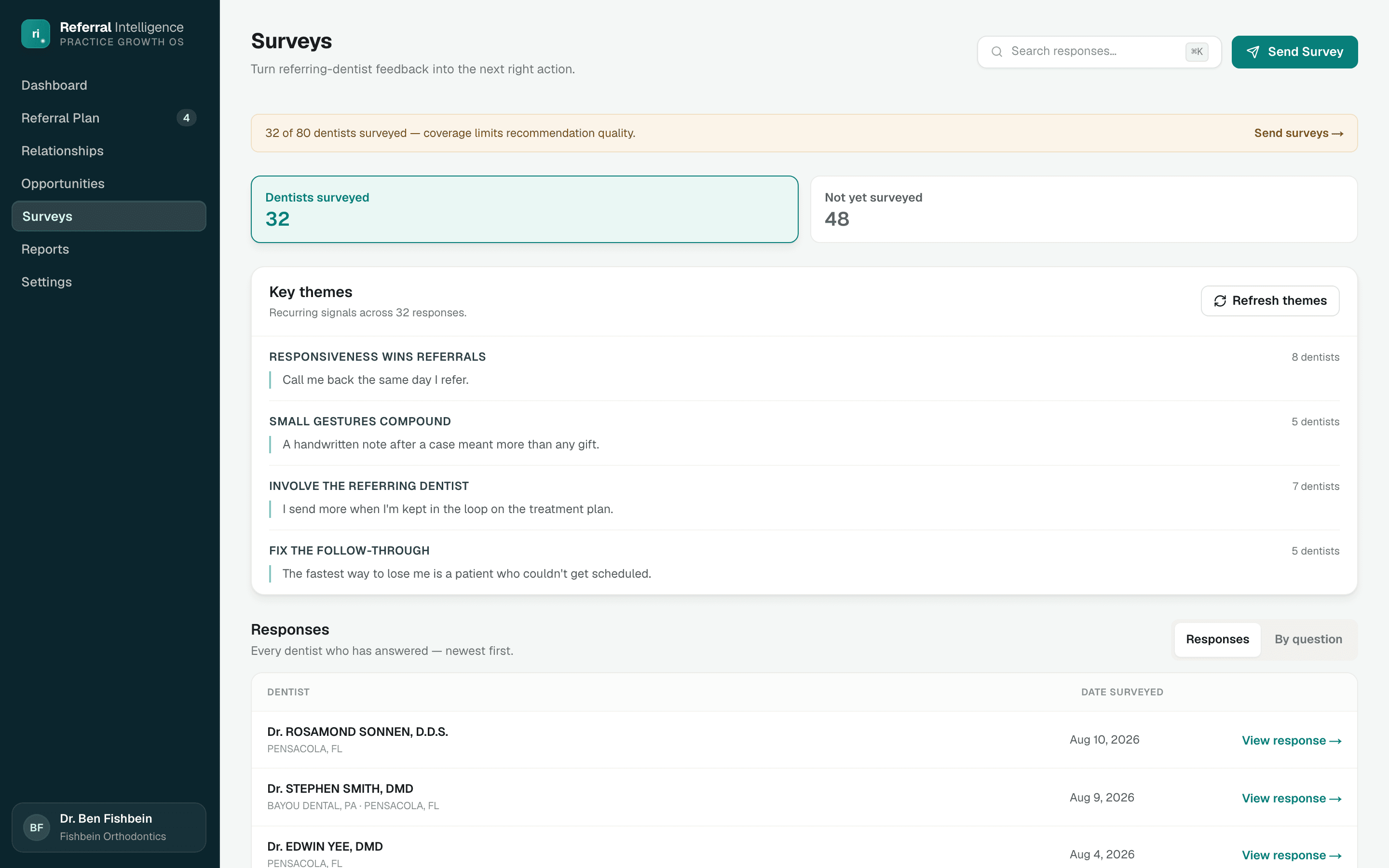
Coverage
Two tabs at the top, Dentists surveyed and Not yet surveyed, split your network, each with a count. Click a tab to switch the list below.
Not yet surveyed lists each missing relationship, sorted by estimated annual value, with a Send survey button on every row. Send to all offers a bulk send of the dentists on that list. Before anything goes out, the send confirms the current gift-card amount and checks eligibility so people who already have a live invitation are not contacted again.
Key themes
The platform groups recurring sentiments across responses into named themes, each with a representative quote. Themes need at least three completed responses before they can be generated. Refresh themes rebuilds the set from the latest answers. When an action comes from something dentists keep saying, it carries a Survey source tag and often the quote itself.
Responses and By question
- Responses: every dentist who has answered, newest first. View response opens a drawer with highlights and signals, every question with the answer given, plus Create action and Open relationship. Create action adds a Survey-tagged item to this week's plan.
- By question: every dentist's answer to one question, side by side, with a question navigator. Answers that match an existing theme are labeled.
Public responses
Answers submitted through your public survey links collect in Public responses, at the bottom of the page. Link each one to a dentist so it counts toward that relationship, or dismiss it. The section only appears when something is waiting.
Surveys, end to end
Surveys are how referring dentists tell you the truth. They are confidential, short, and require no account on the dentist's side.
Building a survey
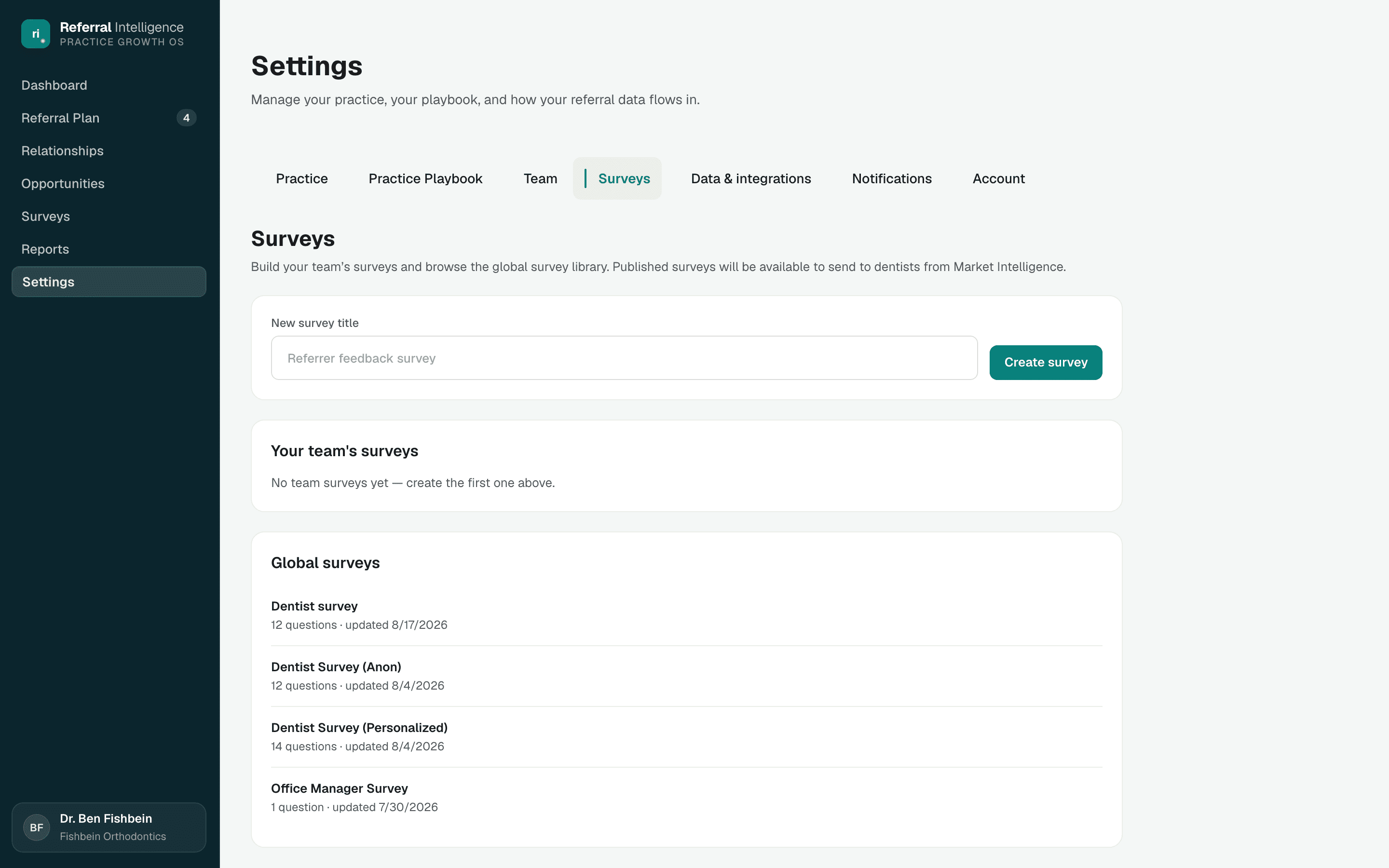
Go to Settings, Surveys. Create a survey with a title, then open it to add questions one at a time: the prompt, a type (short text, long text, multiple choice, multi select, true/false, number, or percentage), whether it is required, answer options, and optional helper text. Questions can be reordered. A survey moves through draft, published, and closed states, and only published surveys can be sent. A read-only global library of platform-managed surveys sits alongside your own.
What the dentist sees
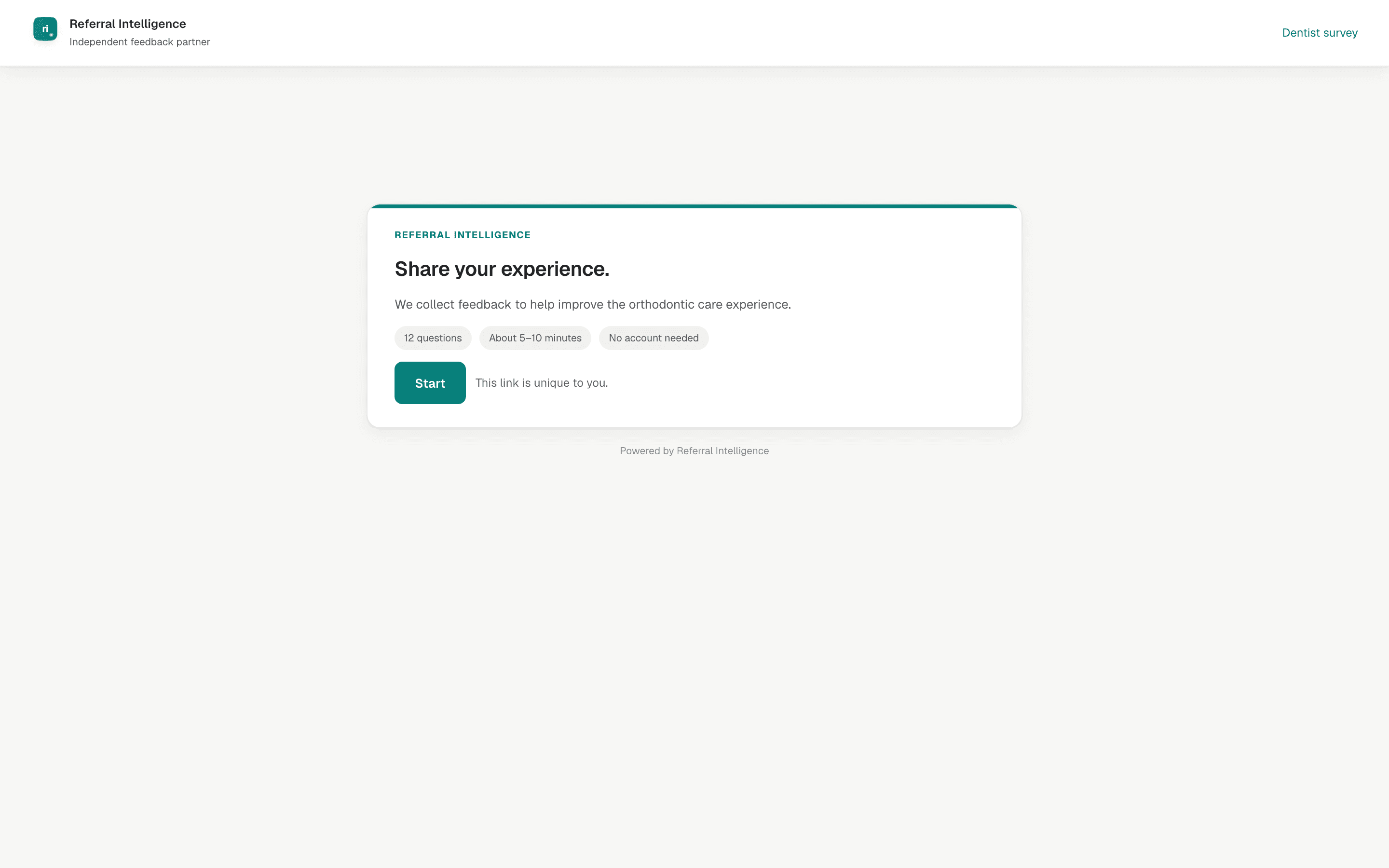
- The dentist opens their private invitation link and sees a landing page framing the survey as independent feedback, with a time estimate and a note that no account is needed.
- All questions sit on one page with a progress meter counting required answers.
- After submitting, a thank-you page confirms receipt. If an incentive is attached, the dentist can redeem a gift card right there.
- Opening a used link again shows You've already submitted this survey. If a gift card was attached, Open your gift card is still available.
There is also a public open-link version of the dentist survey. Anyone with that link can answer; two extra questions collect the respondent's name and email, for 14 questions total (the 12 canonical dentist questions plus name and email). Those answers are not attached to a specific relationship on your roster.
The gift-card amount is set by the platform administrator — $100 by default — and is locked onto each invitation at the moment it is sent. Changing the amount later does not change invitations already out.
Where answers go
- The Surveys page: themes, the response list, and the by-question comparison.
- The Dashboard's What dentists are telling you cards.
- The Survey intelligence panel on each relationship profile, and the View responses drawer with every answer word for word.
- Survey-tagged actions in the weekly plan.
- Surveyed and not-yet-surveyed indicators across the roster.
How the numbers work
The platform computes stages, health, potential, and outcomes from your referral history, so two team members always see the same truth. The few things your team sets by hand, such as Met, overrides, and archiving, are shared across the practice too.
Stages and health
Every dentist and practice on your list has one stage. The rules are checked from top to bottom, and the first one that matches wins.
| Stage | Rule |
|---|---|
| Archived | Archived by your team, with a reason |
| Lapsed | Has referred before, but the last referral was more than 120 days ago |
| Referring | Last referral 120 days ago or less |
| Lead | Has never referred, and your team has made contact |
| Target | Has never referred, and there has been no contact yet |
Contact means a logged interaction, or a survey answer from that dentist. For a practice, contact with any of its dentists counts. Sending a survey invitation is not contact. A dentist in the national directory who is not on your list has no stage; their page reads Prospect.
A referring relationship also has a health:
| Health | Rule |
|---|---|
| At Risk | Last referral 91 to 120 days ago |
| Slipping | Last referral 31 to 90 days ago, for a Regular referrer |
| Active | Everyone else who is referring: last referral within 30 days, or an Occasional referrer within 90 days |
A dentist who refers only a couple of times a year stays Active for 90 days, because a month of quiet is normal for them. Only Regular referrers are flagged as Slipping. Your team can overrule the health with Mark as normal or Flag as at risk; see The relationship profile.
Tags
| Tag | Shown on | Rule |
|---|---|---|
| Regular | Referring and Lapsed | 3 or more referrals in the last 12 months |
| Occasional | Referring and Lapsed | Fewer than 3 referrals in the last 12 months |
| New referrer | Referring | First-ever referral within the last 90 days |
| Contacted | Lead | Contact within the last 90 days |
| Gone cold | Lead | Last contact more than 90 days ago |
| Not contacted | Target | No contact yet |
| Overridden | Referring | Someone on your team marked the relationship as normal or flagged it as at risk |
Met, stage and play are separate
Met is a simple yes or no your team controls. Stage and health are worked out from referral and contact history. The play is a third read, built from the stage, health, and tags. A dentist can be Met and Referring and still get the Check in play, because their referrals have slowed. Logging an in-person interaction marks a dentist Met and also counts as contact, but only a referral moves them to Referring.
How next moves are ranked
Upside is the referral gap multiplied by your average case value. The ranking score blends the gap (40 percent), the trend (25 percent), relationship value (20 percent), and plan coverage (15 percent). Relationships not yet covered by this week's plan rank higher, so the list keeps pointing at work you have not started. A relationship marked as normal scores no gap, and archived relationships are left out.
Who gets credit for a referral
Every referral is credited to exactly one relationship. If its source is linked to a practice, the practice gets it. If its source is a dentist who has been grouped under a practice, the practice gets it. Otherwise the dentist gets it. Referrals linked to a category, or typed Other, do not count toward any relationship's numbers. Nothing is rewritten when you group, ungroup, or relink, so you can always undo a change and the numbers follow.
Dates and times
Timestamps such as when a survey was submitted, when a teammate joined, or when a brief was prepared are shown in your own time zone, taken from your device. Hover a full date and time to see the zone name. Plain calendar dates, like the date of a referral or a logged interaction, are shown exactly as recorded.
Estimated production potential
When actual production is not available, dollar figures use your practice-wide production value per referral, which defaults to 6,000 dollars and lives in Settings, Practice. Changing it recalculates every estimated production figure in the app. Referral potential (for example, referring 9 of a potential 22) comes from a manual override first, then from what the dentist stated in a survey.
Marketing ROI estimates production differently: leads times your lead conversion rate times production value per referral. The conversion rate lives next to production value in Settings, Practice, and defaults to 50%.
Referral lift
After an action is completed, the platform watches the following weeks and reports what it observes: a percentage lift, new referral activity, or no measurable change. Results within the first 30 days read as not enough data yet. The language is always observational, because many things move referrals at once.
How the AI works
Three features are generated by AI: the weekly plan, meeting briefs, and draft follow-ups. They all follow the same rules, so you always know what the AI saw and what it is allowed to do.
What it works from
Generation is grounded in your own data: referral metrics and trends, each relationship's stage, health, tags, and play, any Mark as normal or Flag as at risk override with its note, opportunity scores, your Practice Playbook answers, survey responses, living profile details (never a dentist's cell phone or personal email), and interaction notes. Nothing is invented. Every number in a generated action restates a number the platform computed, and the plan can only name dentists who are actually on your roster.
Guardrails
- Playbook first: activities you marked No are never suggested, and your stated goals, comfort zones, and weekly time shape tactic choice.
- Your team's calls stand: a relationship marked as normal is not treated as at risk, and archived relationships are never planned for.
- Validated before saved: every generated action is checked against your roster and the standard vocabulary. Anything that does not pass is dropped, and a plan that cannot reach a solid floor of valid actions is rejected outright.
- Never destructive: a failed generation leaves your current plan exactly as it was. Briefs are kept as history rather than overwritten, and drafts are never stored at all.
- Honest language: outcome copy stays observational. The platform says lift was observed after an action, never that the action caused it.
When something goes wrong
Failures are visible, not silent. A regenerate that fails shows a message and keeps the prior plan. If the practice's AI access is not set up, buttons report that AI features are not configured instead of pretending to work. You will never see fake content standing in for a failed generation.
Settings
Settings is organized into eight areas: Practice, Practice Playbook, Team, Surveys, Referral sources, Data and integrations, Notifications, and Account.
Practice
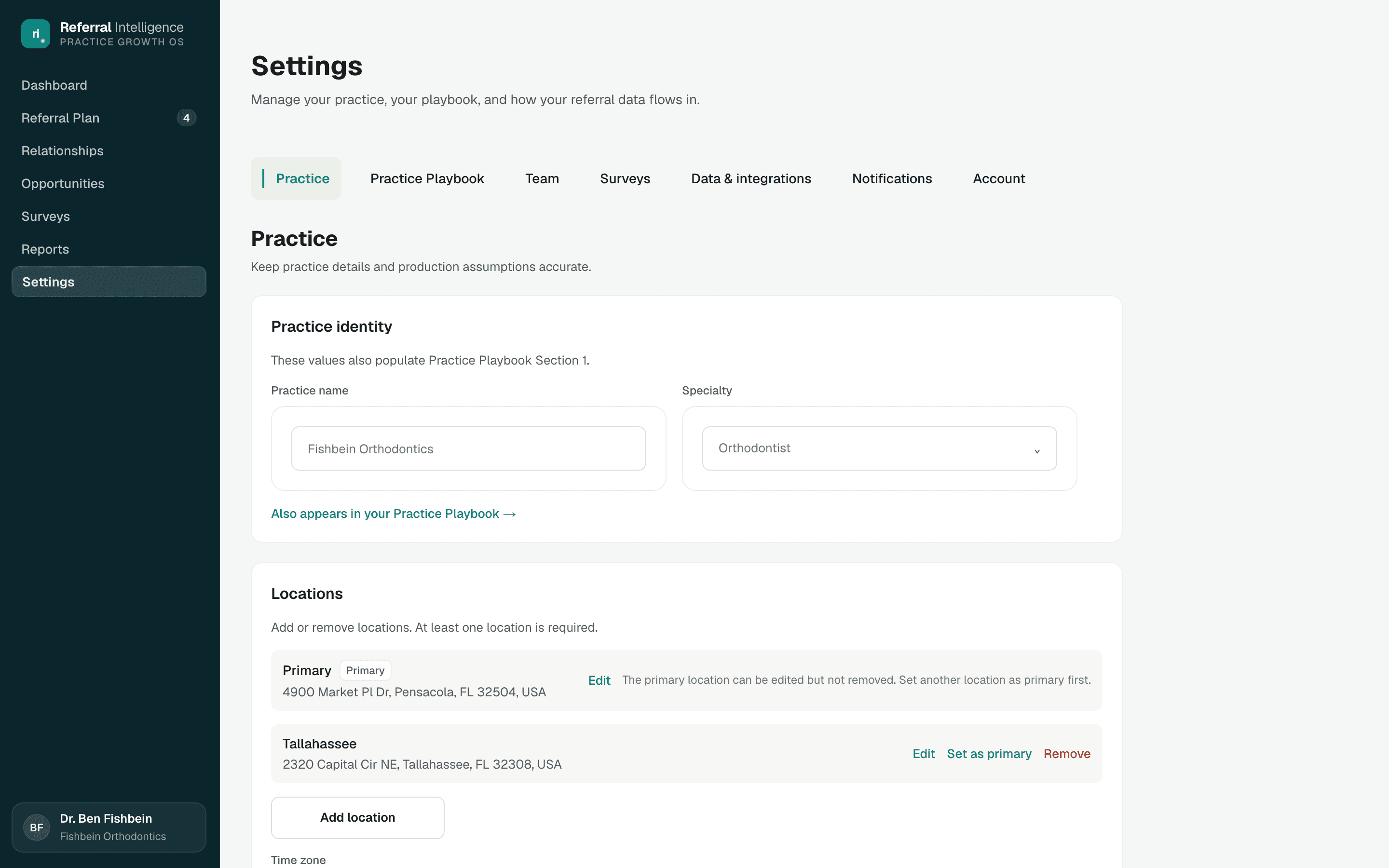
Keep the practice name, specialty, and locations accurate. Locations drive the distance and radius filters on Opportunities, and one location is always marked primary. Owners can upload the practice logo here (PNG or JPEG, up to 2 MB). It appears at the bottom of the sidebar and on report PDFs, and Replace or Remove take effect right away. This page also holds the production value per referral used across all dollar estimates, and the lead conversion rate that Marketing ROI uses to estimate production.
Practice Playbook (owners)
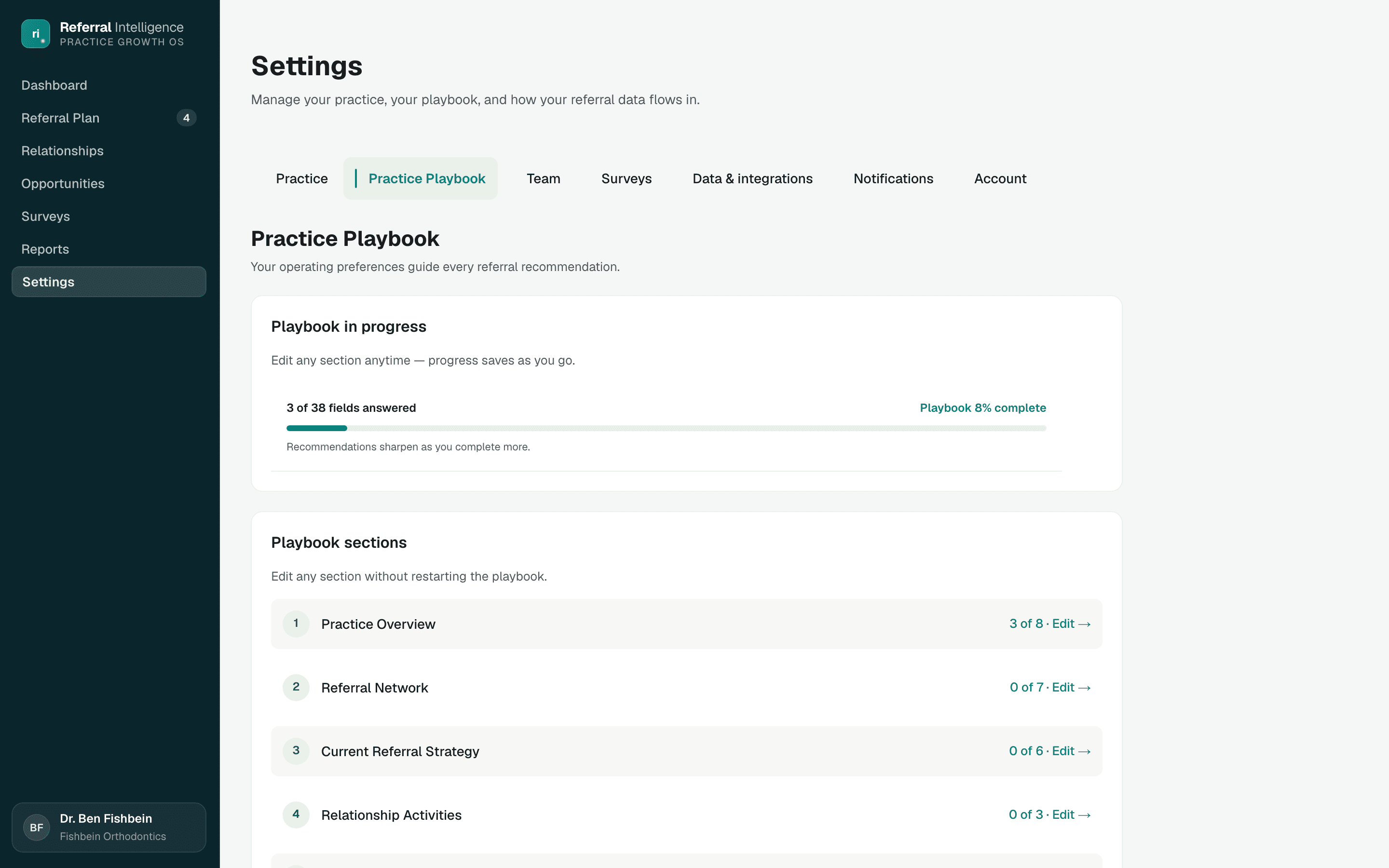
The Playbook captures how your practice operates: an overview including everyone who shares referral marketing, how referral data arrives, where your referral network stands and what is holding it back, which strategies have worked and which you are comfortable running, which relationship activities you will and will not do, time and capacity, how you want to be coached, and your goals. Answers guide recommendations. A No on an activity is a hard guardrail the platform respects; Not sure keeps an activity exploratory. Locations are managed in Practice settings.
Team (owners)
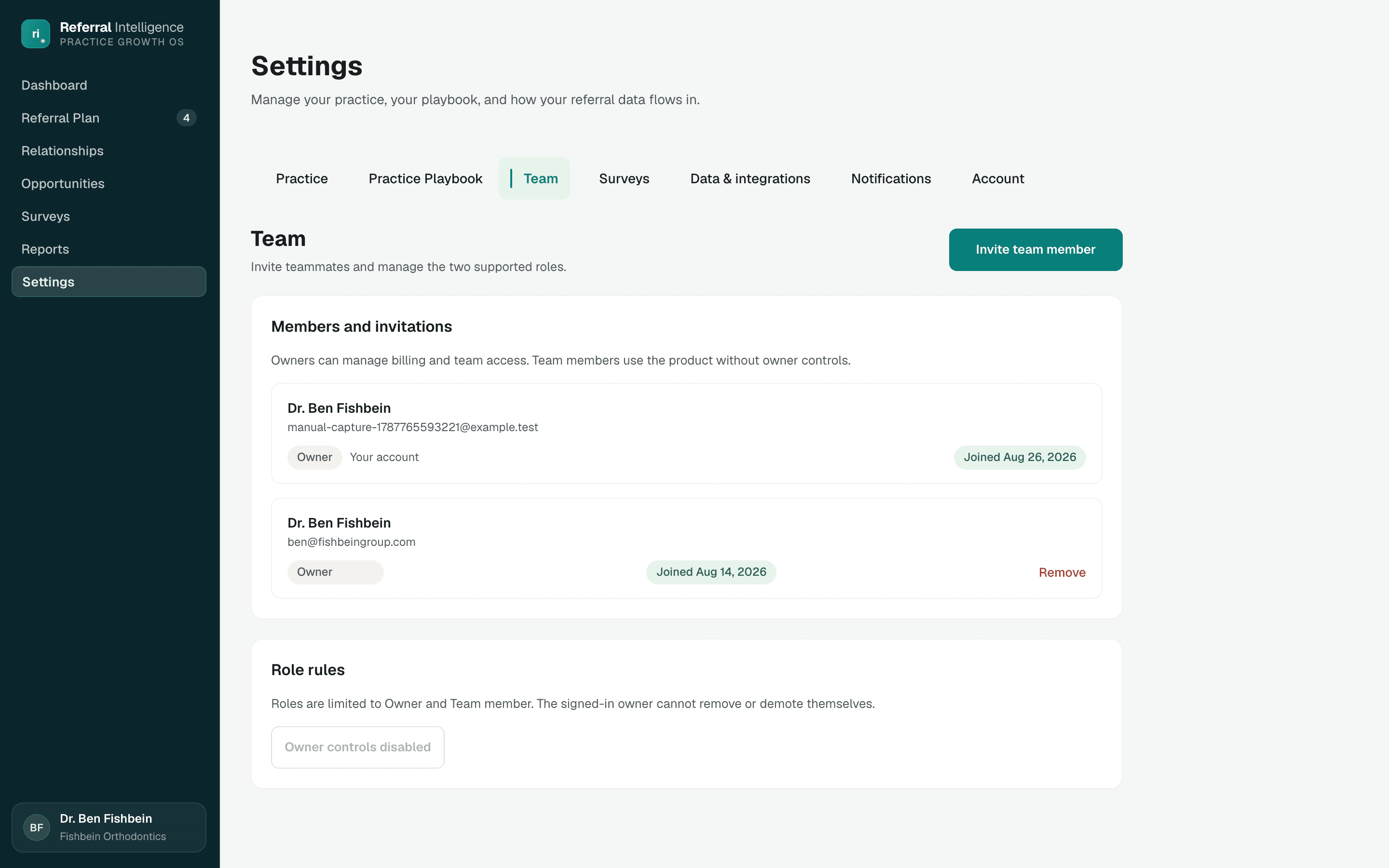
Invite teammates by email as Owner or Team member. Pending invitations can be resent or revoked, and members can be removed with a confirmation step.
Surveys
Build your team's surveys and browse the global survey library. Create a survey, add and reorder questions, then publish it so it can be sent from the Surveys page. Opening a team survey opens the editor; opening a global survey is read-only. See Surveys, end to end for the dentist-facing flow.
Referral sources
Not every referral comes from a dentist. Patients, online ads, billboards, insurance sites, and community events send patients too. This page holds the categories you use to label those sources. Every practice starts with a ready-made set (Patient, Online, Social media, Billboard, Insurance, Community and events, Other) that you can rename, reorder, add to, or delete.
- Each row shows the category name and how many imported sources are linked to it.
- Click the pencil to rename in place. The arrows move a category up or down the list.
- Deleting a category returns its linked sources to the unlinked list on Relationships. Their referral history stays with the source.
- Owners edit this list. Team members can view it.
Data and integrations
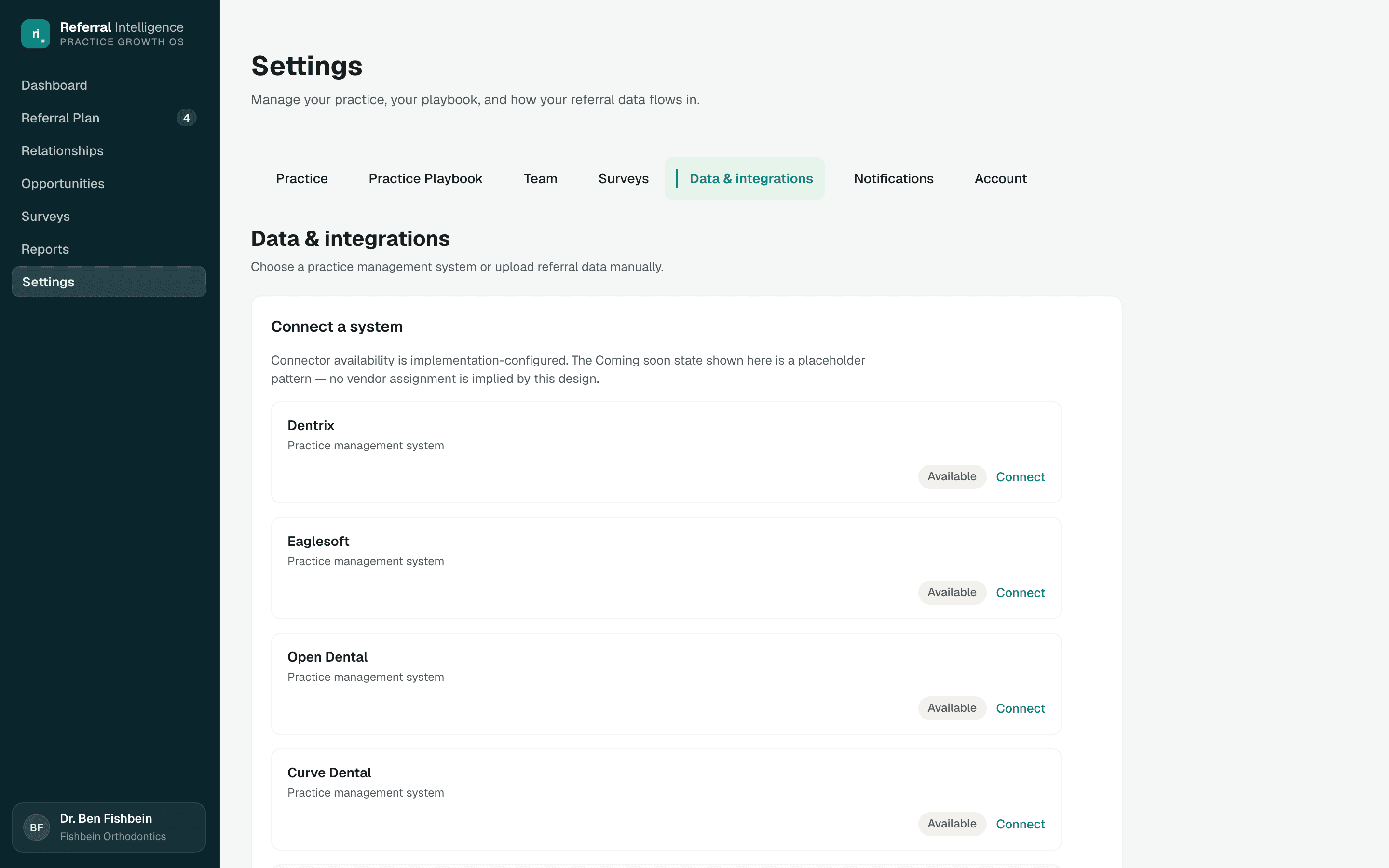
Calendar sync gives you a private calendar link for Google Calendar, Outlook, or Apple Calendar. Subscribe once and your events and Referral Plan tasks stay up to date there. Choose whether to include the whole team's items or only your own, and whether to add yearly reminders for dentist birthdays. Resetting the link stops calendars subscribed to the old one from updating.
Notifications
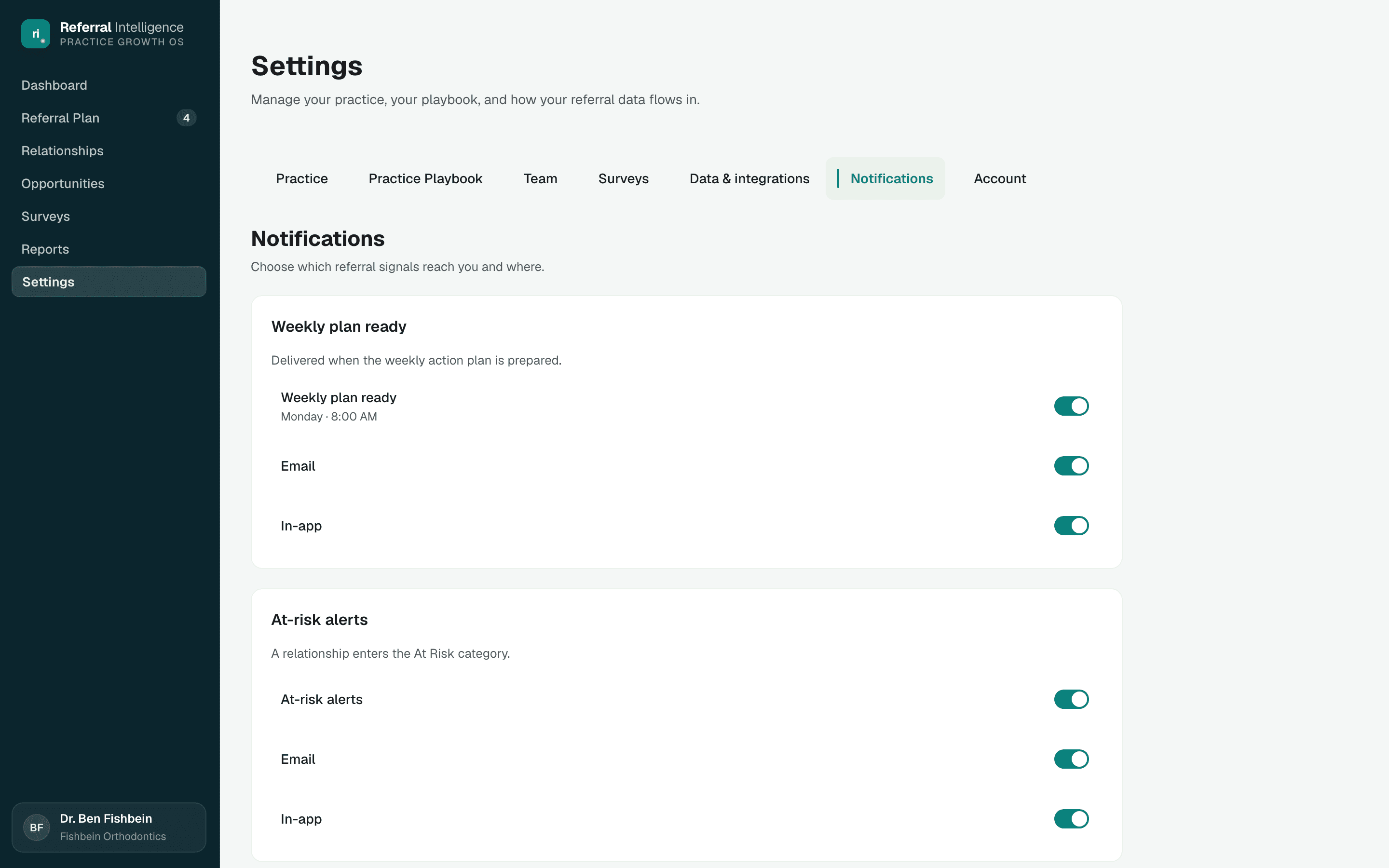
- Weekly plan: delivered on Monday, when your weekly plan is generated.
- Survey responses: a dentist completes a survey.
- Archived relationships: an archived dentist or practice sends a new referral and comes back to your list.
- Dentist birthdays: a dentist on your list has a birthday today. In-app is on and email is off until you turn it on.
Email arrives as a daily digest of unread notifications rather than one message per event. In-app notifications live in the sidebar user card, with a mark-all-as-read control.
Account
Your profile photo, name, and login email; password changes; plan status and billing contact; and sign out.
What's coming next
A few surfaces are visible in the app today but arrive fully in upcoming releases.
- Referral and CSV import: a working path to load referral history so a new practice is not stuck with an empty roster.
- Practice-management integrations, so referral data flows in without manual entry.
- Photos for relationships: a headshot for each dentist or a logo for each practice, shown on the roster and profile pages and private to your practice.
- Counting non-dentist referrals: sources linked to a category (patients, ads, events) will feed practice-level totals in a later release. Today they are labeled but not yet counted.
Questions, feedback, or something that looks wrong? Write to hello@referintel.com and include the page you were on.